Teams in Board allow you to group users, which can be useful for filtering data on boards, setting notifications, and managing games. When choosing a team, your data will be based on the users that are in the teams. You can also share content based on teams.

Overview
Create a Team
- Go to Settings
- Click Teams
- Click Create Team
- Give the team a name
- Under Parent you can select if the team should belong to an existing team, making it a sub-team
- Click Save
The team will now appear in the overview, where you can manage its settings and members.
Add a team image or GIF
You can add an image or GIF to make your team easier to identify.
To add an image or GIF:
- Select the team
- Hover over the team abbreviation icon on the left
- Click Edit
- Upload the image or GIF you want to use
- Click Save
GIFs cannot be cropped, rotated, or otherwise edited
Add/Remove Users
You can manage team members in two ways.
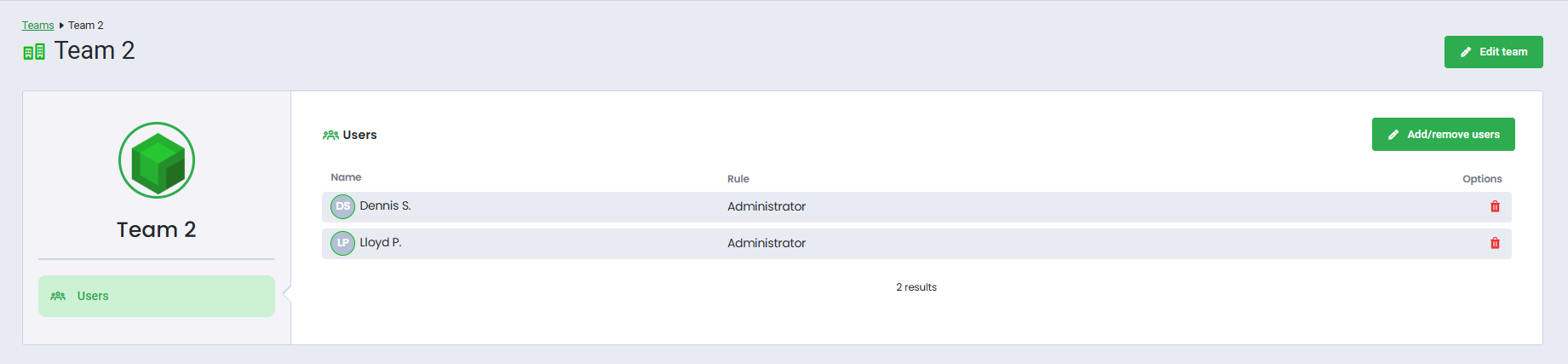
Option 1: From the team
- Go to Settings
- Click Teams
- Select the team
- Click Add/Remove Users
- Select the users you want to add or remove
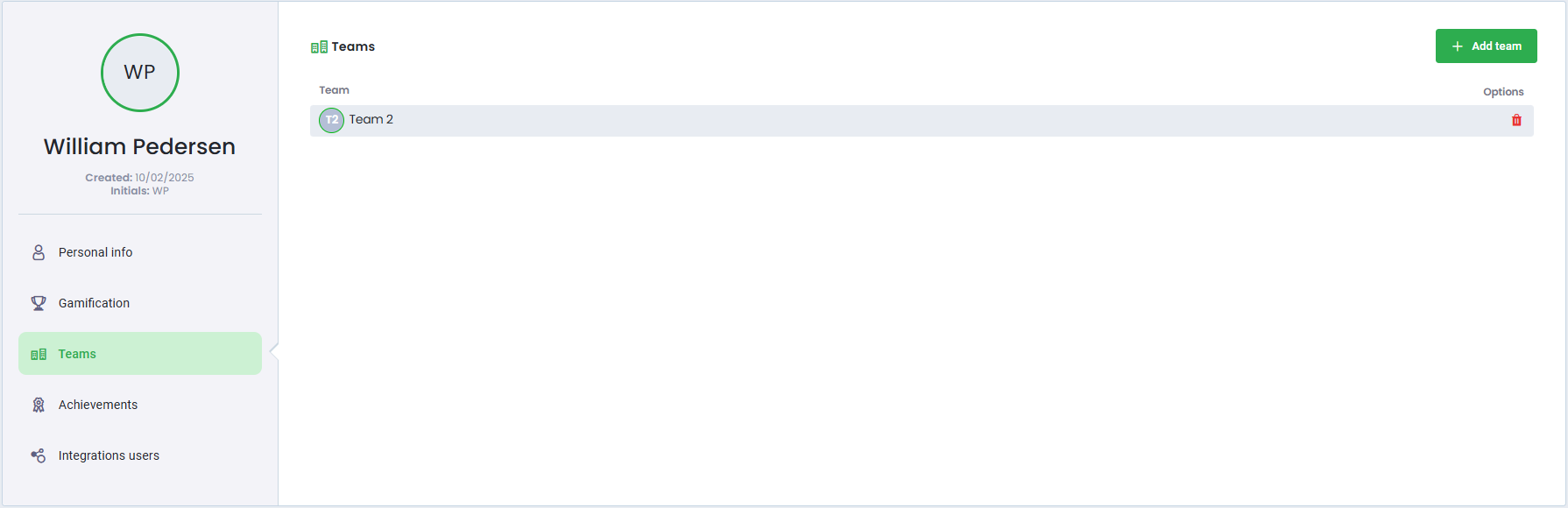
Option 2: From the user profile
- Go to Settings
- Click Users
- Select the user
- Open the Team tab
- Click Add team
- Select the team you want to assign the user to, or deselect the team to remove the user
Edit a Team
- Go to Settings
- Select Teams
- Click Edit next to the team, or open the team and click Edit Team in the upper-right corner
- Update the team name or select a Parent team to make it a sub-team
- Save your changes

Delete a Team
- Go to Settings
- Select Teams
- Click Delete
- Click Yes to confirm
Was this article helpful?
That’s Great!
Thank you for your feedback
Sorry! We couldn't be helpful
Thank you for your feedback
Feedback sent
We appreciate your effort and will try to fix the article