With formulas, you can create customized formulas in Board, eliminating the need to manually calculate complex equations.
You must have the Administrator role to have to create formulas in Board.
Learn more about formulas here.
Create Formula
- Navigate to Settings
- Select Formulas
- Click Create Formula
- Name the formula and optionally add a description
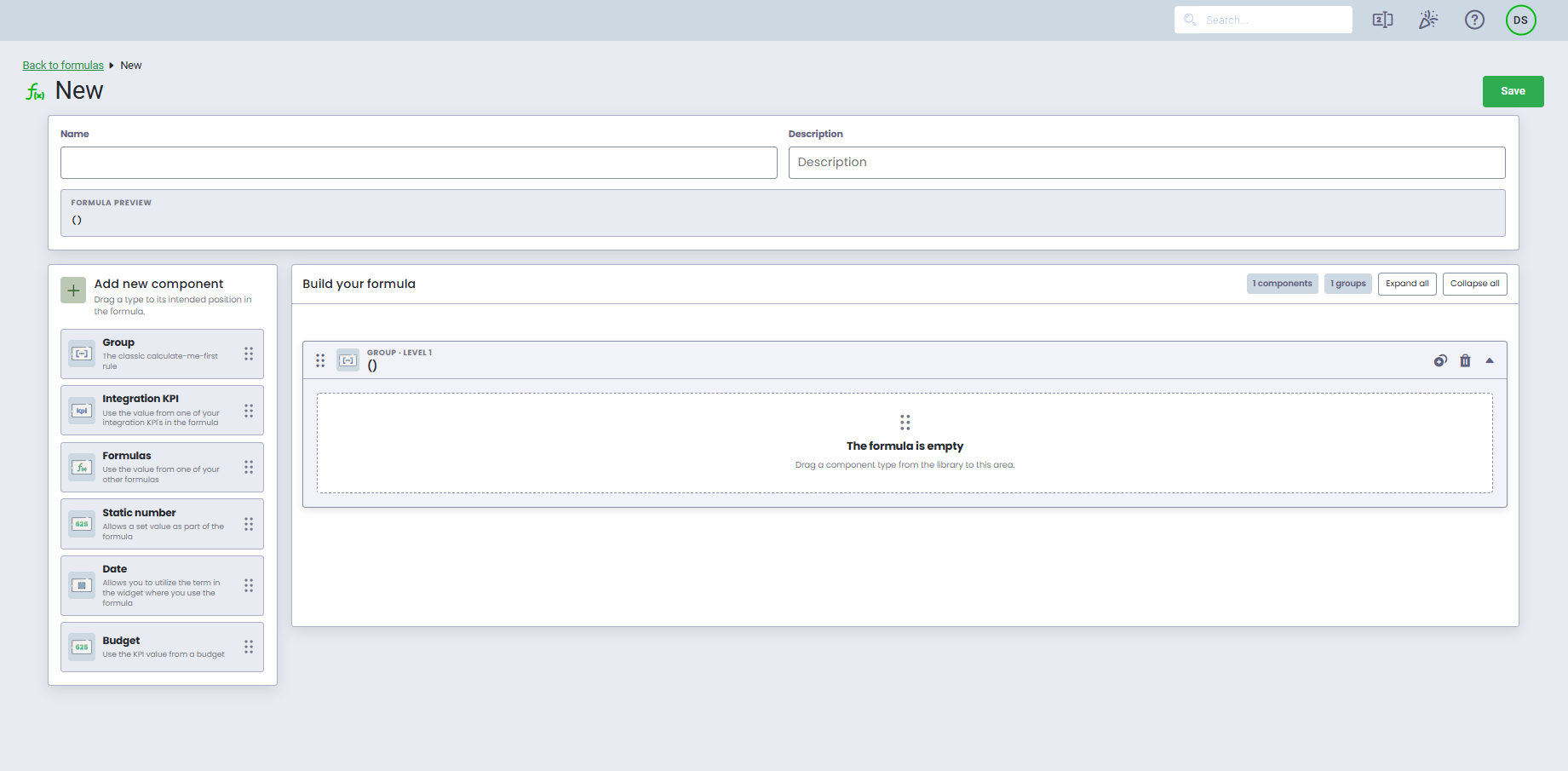
- Build your formula using drag and drop:
- Select a component type under Add new component and drag it into Build your formula
- Select and configure the component
- You can choose between the following component types: Group, integration KPI, formulas, static number, date, or budget
- Add additional components as needed
- Arrange the components to create the desired formula
- A preview of your formula is displayed at the top of the page
- When you have finished building your formula, click Save
Manage your components
Once you have added components to your formula, you can manage them using the options in Build your formula.
- The number of components and groups is displayed at the top of the section
- Click Expand all or Collapse all to expand or collapse all components
- Click the duplicate icon to create a copy of a component
- Click the trash can icon to delete a component
- Click the arrow icon to expand or collapse an individual component
- Drag and drop components to change their position in the formula
Component types
Group
The classic calculate me first rule.
- Select Group
- Drag components from Add New Component into the Group
- To create multiple levels in the formula, insert Group inside your existing group and add your components
Groups allow you to control the order in which calculations are performed, similar to using parentheses in a mathematical equation.
Integration KPI
Use the value from your integration KPIs in the formula.
Here, you can combine KPIs from one or more integrations.
If you use KPIs that measure time in your formula, be aware that time is displayed in seconds. To display the formula result in hours, you can use the Group component to divide the Integration KPI by 3600. For example: Integration KPI / 3600.
Remember to add decimal places in your widget to display the specific number.
Only Number KPIs can be used when creating formulas.Formula
Use the value from one of your other formulas.
If you have created formulas, you can use them within other formulas. For example, if you have created a formula that combines multiple KPIs, you can simply reference that formula instead of selecting each KPI individually. This makes it easier to build and maintain complex formulas.
Static Number
Allows you to have a fixed value as part of the formula.
Note that only whole numbers can be used.Date
Allows you to utilize the period in the widget where you use the formula. For example, you can create formulas that count weekdays.
Budget
Use the value of a budget KPI. Learn more about budgets and how to set up a formular for a budget based on weekdays here.
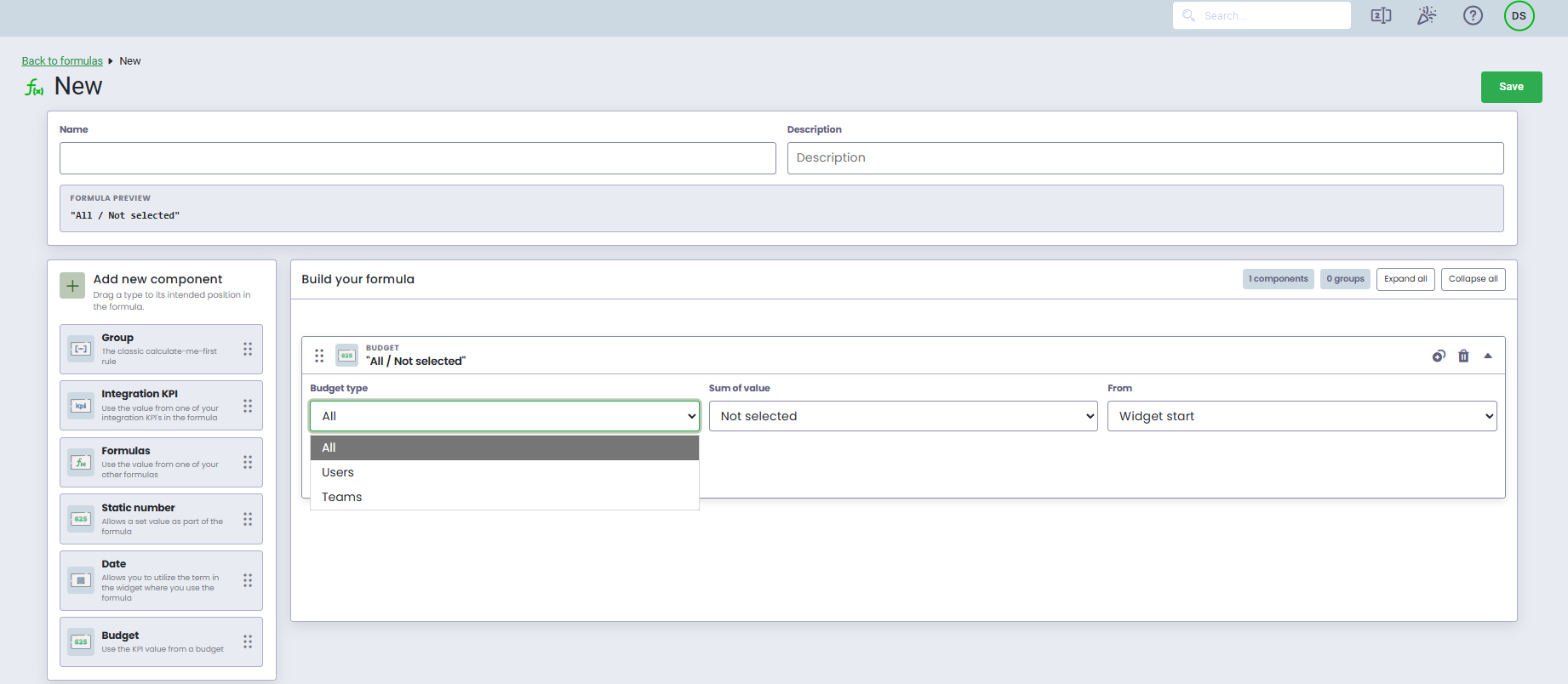
When setting up your formula, you can select a Budget type by selecting All, User, or Team, depending on what your formula should be based on.
Under Formulas, you always have an overview of your created formulas. You can always edit, duplicate, or delete your formulas if you no longer use them.
Customize a formula
- Navigate to Settings
- Select Formulas
- Find the formula you want to customize
- Duplicate or delete components using the corresponding icons
- Rearrange components by dragging them to a different position in the formula
- Add components before or after an existing component by clicking +
Duplicate a formula
If you need to create a copy of an existing formula:
- Navigate to Settings
- Select Formulas
- Find the formula you want to duplicate
- Click Duplicate Formula
- Modify the duplicated formula, e.g. giving it a new title and making any necessary adjustments
- Click Save
Showcase data for formulas
When using a formula in a widget, you can select Formulas as well as the integration the formula is based on.

Was this article helpful?
That’s Great!
Thank you for your feedback
Sorry! We couldn't be helpful
Thank you for your feedback
Feedback sent
We appreciate your effort and will try to fix the article