Budgets allow you to track progress toward goals in Board. You can create budgets for both users and teams.
The first time you create a budget, you need to complete these three steps:
Once budgets have been created, you can:
Only Managers and Administrators can access Budgets.
- Managers can view and manage the budgets they have created
- Administrators can view and manage all budgets
In the overview, you can filter budgets by Ongoing and Future or All.

Budget KPIs
- Go to Settings
- Click Budgets
- Click Budget KPIs
- Click Create New KPI
- Enter a descriptive name for the KPI
- Click Save
To rename a Budget KPI later, click Edit.
A budget KPI must be created before you can proceed to create a budget.

Create a Budget
- Go to Settings
- Click Budgets
- Click Create Budget
- Select the user or team the budget should apply to
- Optionally, enter time periods
- Enter the start and stop date for the budget
- Choose whether the budget should apply to Every day in the period
- Set the toggle to No if you want to exclude specific days
- Enable Budget per day if the budget should be entered as a daily budget instead of a total budget
- Enter the budget value
- Click Save
After creating a budget, you must create a formula based on budget before the budget can be used in widgets and reports
Only Administrators can create formulas.

Duplicate a Budget
Duplicate an existing budget to save time when creating similar budgets.
For example, you can duplicate a monthly budget and update the dates or budget values. You can also duplicate a budget from one user or team to another.
- Go to Settings
- Click Budgets
- Find the budget you want to duplicate
- Click Duplicate
- Update the user or team, dates, and budget values as needed
- Click on Save
Edit a Budget
- Go to Settings
- Click Budgets
- Find the budget you want to edit
- Click Edit
- Make your changes
- Click Save
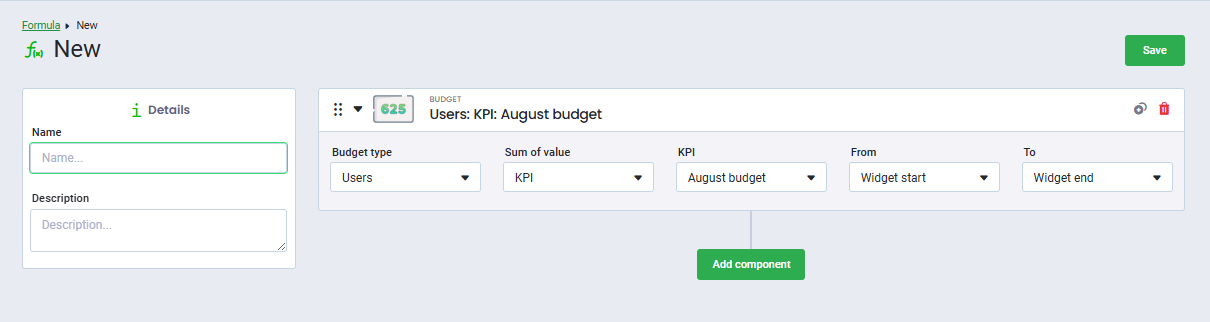
Create a Budget Formula
Once your budget has been created, you need to create a formula based on it.
- Go to Settings
- Click Formula
- Click Create Formula
- Enter a name for the formula
- Click Add Component
- Select Budget as the component
- Configure the formula by selecting:
- Budget type
- Sum of value
- Select KPI, if you want to display the budget values
- KPI
- Displays the Budget KPIs you created in the Budget KPIs section
- From and to
- Click Save
After saving the formula, you can use it to visualize budget data throughout Board.
Budget by weekdays
If your budget should only apply on specific weekdays, add a Date component to the formula and select Weekdays under Category.
Using the Date component allows the budget to be calculated dynamically throughout the day. For example, when displayed in a table, the budget will continuously update to provide a real-time view of the expected progress.
Alternative approach to budget formulas
If every employee has the same budget, you do not need to create individual budgets.
Instead, you can create a formula using a static value combined with a Date component. This produces the same result while requiring less maintenance.
Was this article helpful?
That’s Great!
Thank you for your feedback
Sorry! We couldn't be helpful
Thank you for your feedback
Feedback sent
We appreciate your effort and will try to fix the article