In Data Sets, you can view data from your integrations. You can easily search for information within your data sets and export the data to Excel.
- Go to Settings
- Click Data Sets
- Select the data set
You must have the Administrator role to access data sets. As a Manager, you can only access the data sets for the integrations you have been granted access to.
When you have created an integration, you’ll be able to view the data from the integration under Data Sets.

Filters
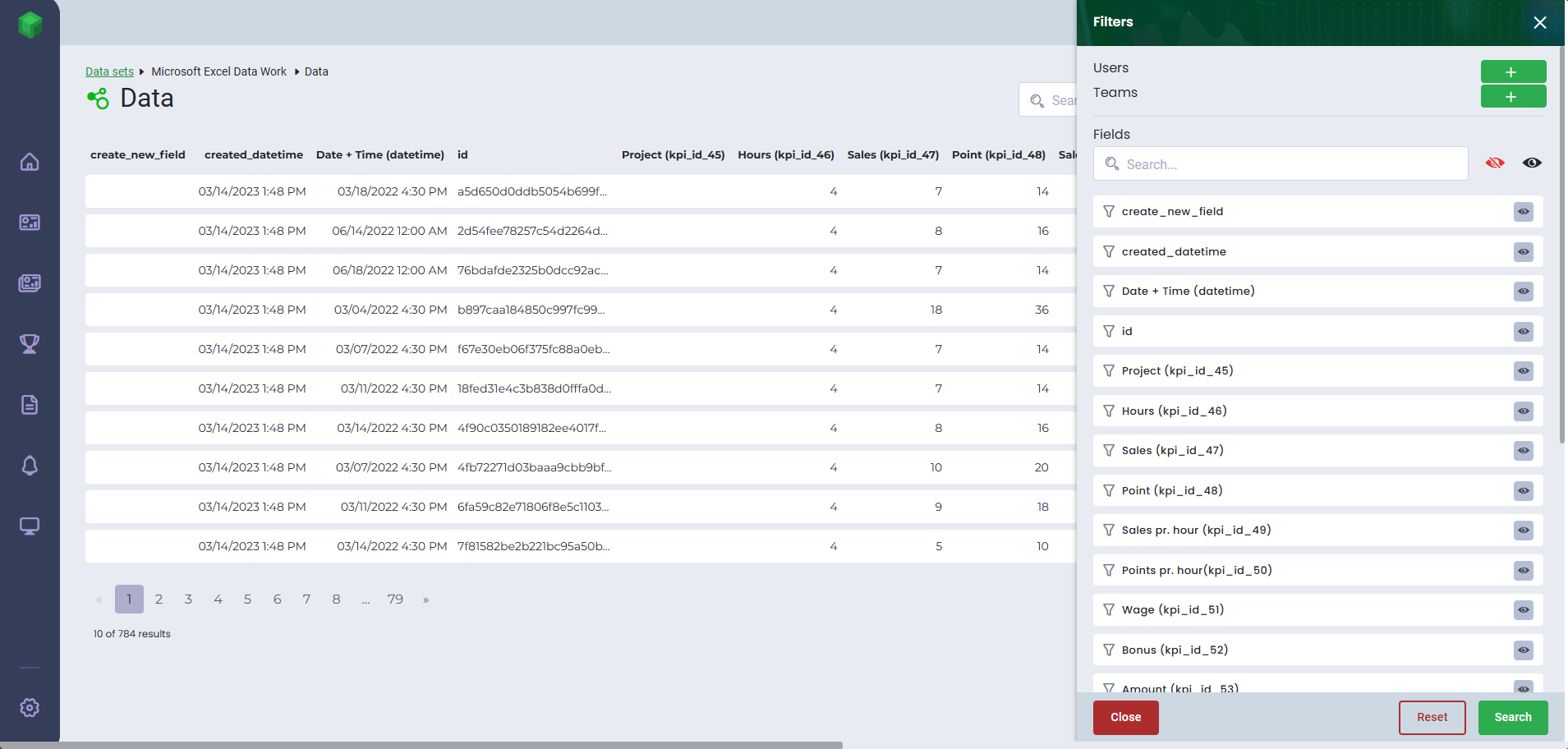
With the filter function in Data Sets, you can easily search for specific data.
Sort the order of columns within a data set by clicking on the column header. The arrow in the header indicates the sorting direction.
- Go to Settings
- Click Data Sets
- Select the data set
- Click the Filter button
- You can search for your Board users and teams by clicking '+' and selecting the user or team from the dropdown to view data for
- If your users are not created in Board, you can still filter data by individual users. You can find the user's External ID under their user profile in the Integration User tab. Use this ID to filter data. Learn more about Integration User
- The field name depends on the integration
- Enter the External ID/User ID from your integration
- Use the search bar to search for specific fields
- If the icon next to your field is red, the field is hidden. Simply click the icon to make the field visible
- Use the filters to search for data
- Please note that any text must exactly match the text from the integration, including uppercase and lowercase letters
- Active filters will be displayed at the top
- Click Search
If you have multiple entries you want to search for in a dataset field, you can simply copy them from a column or external source and paste them into the filter using Ctrl+V. This saves you from entering the data one by one.
You can save your search by saving the URL. You can also send the URL to someone who have the same rights as you so they can see the exact same search as you have made.Hide Data
If you want to hide certain data from your overview, you can easily hide columns.
- Click Filter
- Click the Icon next to the data you want to hide
- To view the data again, click the icon once more (Show). You can also refresh the page to reset all filter selections.
The Icon will be marked in red when data is hidden.

Delete Data
If you want to delete data, there are several ways to do so.
In your data set, you can easily filter and delete data.
Delete multiple items
- Go to Settings
- Click Data Sets
- Select the data set
- Search for the data using Filters
- Click Delete Filtered Data
- Confirm with Yes
Your data will then be permanently deleted from the data set. To see the change, simply refresh the page and the deleted data will disappear.
Delete individual items
- Go to Settings
- Click Data Sets
- Select the data set
- Search for the data using Filters
- Find the item you want to delete
- Click on the row
- Click Delete item
- Confirm with Yes
The data will then be deleted from your data set.
You can also delete data from your data source via Settings > Integrations. Learn more here.

Edit data
If you use manual data, you can edit the data directly in your data set.
- Go to Settings
- Data sets
- Select your manual data source
- Search for the data using Filters
- Click on the row
- Click Edit Item
- Make your changes
- Click Save

Export
If you want to export data to Excel, it’s possible.
- Go to Settings
- Data sets
- Select your manual data source
- Click Export
If the file doesn’t download automatically, you can click the link in the pop-up to download it manually.

Was this article helpful?
That’s Great!
Thank you for your feedback
Sorry! We couldn't be helpful
Thank you for your feedback
Feedback sent
We appreciate your effort and will try to fix the article