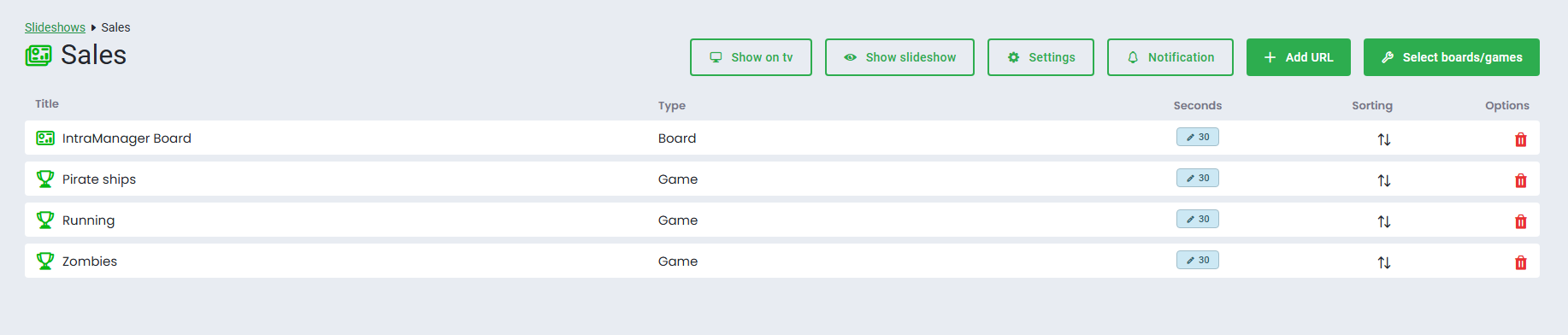
Once you have selected the content for your slideshow, it will be displayed with its title, type, and duration in seconds.
- Go to Slideshow
- Click Edit
- You can adjust how many seconds each board or game is displayed. The duration is automatically set to 30 seconds. To change it, click the number in the blue box under Seconds and enter the desired duration
- If you set the duration to more than 60 seconds, the time will automatically be displayed in minutes
- To change the order of the content, drag the arrows and move the items to the desired position

Features in Slideshows
Show on TV
If you have set up a TV in Board, select the TV where you want to display your content. If you have not set up a TV yet, learn how to set one up here.
Games used in slideshows on a TV may lag. You can find more information here
Show slideshow
Preview your slideshow.
Settings
Make changes to the name, category, or the display of the navigation bar.
Notifications
To add or remove notifications, click Notifications and select the notifications you want to include from the list. Learn more about managing notifications here.
Add URL
Use the Add URL feature to include a website in your slideshow. The website remains interactive, allowing you to click elements and links. Any clicked links will open in a new tab.
In order to add a URL, the website must allow loading through an iframe.
Select boards/games
You can adjust your slideshow at any time by clicking Select boards/games and choosing the boards and games you want to include from the list.
Was this article helpful?
That’s Great!
Thank you for your feedback
Sorry! We couldn't be helpful
Thank you for your feedback
Feedback sent
We appreciate your effort and will try to fix the article