When editing a board, you can manage and customize various settings and features, including:
To edit a board
- Go to Boards
- Select the board you want to edit
- Click Edit
Dummy data or Live data
Use the Dummy Data button to choose whether you want to display dummy data or live data while editing your board.
By selecting Live Data, you can preview how your actual data will appear on the board without clicking Show board.
If User-Conditioned Board is enabled under Setting, live data will not be available. In this case, only dummy data can be displayed.
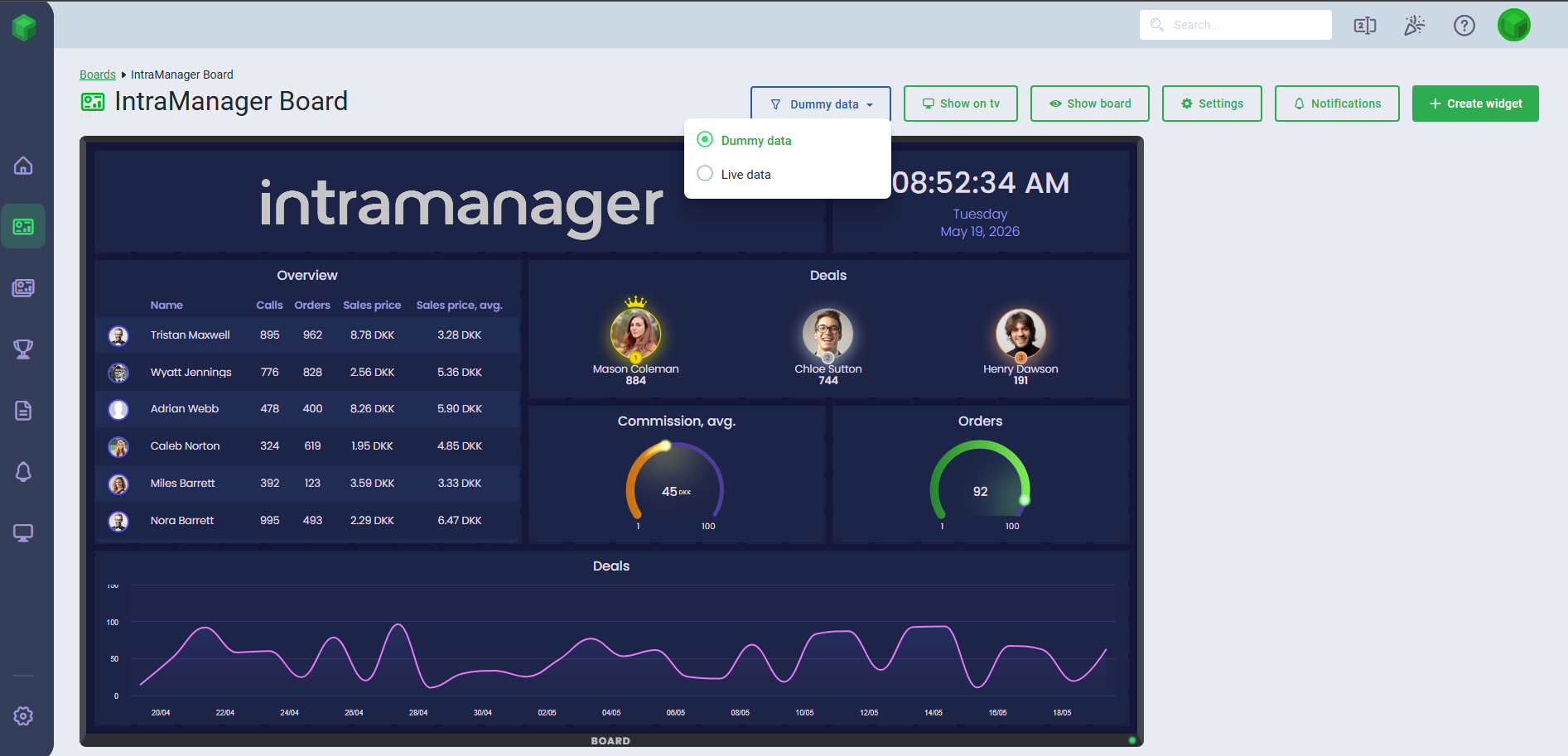
Show on TV
If you have set up TVs, you can choose which TV your board should be displayed on.
If you have not created a TV yet, you can learn more about setting one up here.
Show board
Click Show Board to preview your board. The data will update automatically within a few seconds.
If your widgets contain KPIs based on formulas, you can hover over the widget to view a tooltip showing the formula structure.
To refresh the page, press Control + F5.
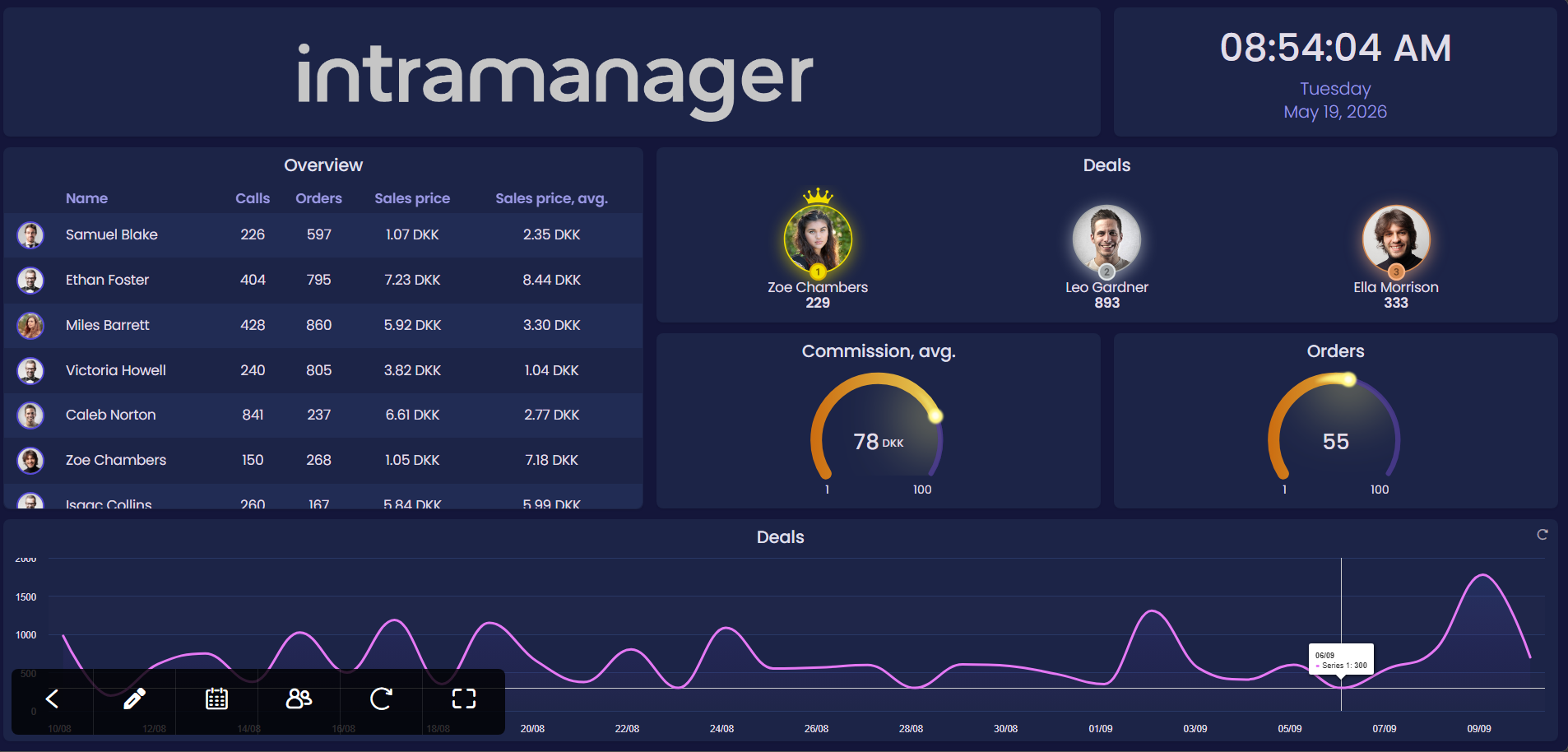
When hovering over the board, the following icons will appear in the bottom left corner:
Go back
Edit board
Reload
Open full screen
Settings
Click Settings to update board settings such as the boards name, time period, Filters etc.
Notifications
If you have created notifications, you can select which ones should be connected to the board. Learn more about adding and removing notifications here.
Create widget
Click Create Widget to add a new widget to your board. Learn more about creating widgets and editing widgets here.
Was this article helpful?
That’s Great!
Thank you for your feedback
Sorry! We couldn't be helpful
Thank you for your feedback
Feedback sent
We appreciate your effort and will try to fix the article