CONTENTS
- Set a default time period
- Change the period for an individual widget
- Duplicate a board or report with a different period
- Define custom week periods
- Use relative time periods
- Use Offset to adjust a period
Set a default time period
Instead of selecting a period for each widget individually, you can define a default period for your entire board or report.
- Navigate to Boards/Reports
- Click Create Board / Create Report or open an existing board/report and click Edit
- Select the default Period you want to use for your board or report
- Create or edit a widget
- Under Period, Inherit from Board selected by default
The widget will now automatically use the period defined in the board or report settings.
Change the period for an individual widget
If you want a specific widget to display data from a different period:
- Navigate to Boards/Reports
- Click Create Board / Create Report or open an existing board/report and click Edit
- Click Create widget or Edit an existing widget
- Change the Period from Inherit from Board to your preferred period
- Click Save
The selected period will now overwrite the default period from the board or report settings.
In Reports, you can define a separate period for each KPI in the widget settings.Duplicate a board or report with a different period
If you want to use the same board or report setup with another time period:
- Navigate to Boards/Reports
- Click Duplicate on an existing board or report
- Give your new board or report a new title
- Select the new Period.
- Update the board title to reflect the new time period.
By using Inherit from Board on your widgets, you only need to update the period once instead of changing it for each widget individually
Ensure that all your widgets are set to Inherit from Board to use the default period defined in the board settings.
Define custom week periods
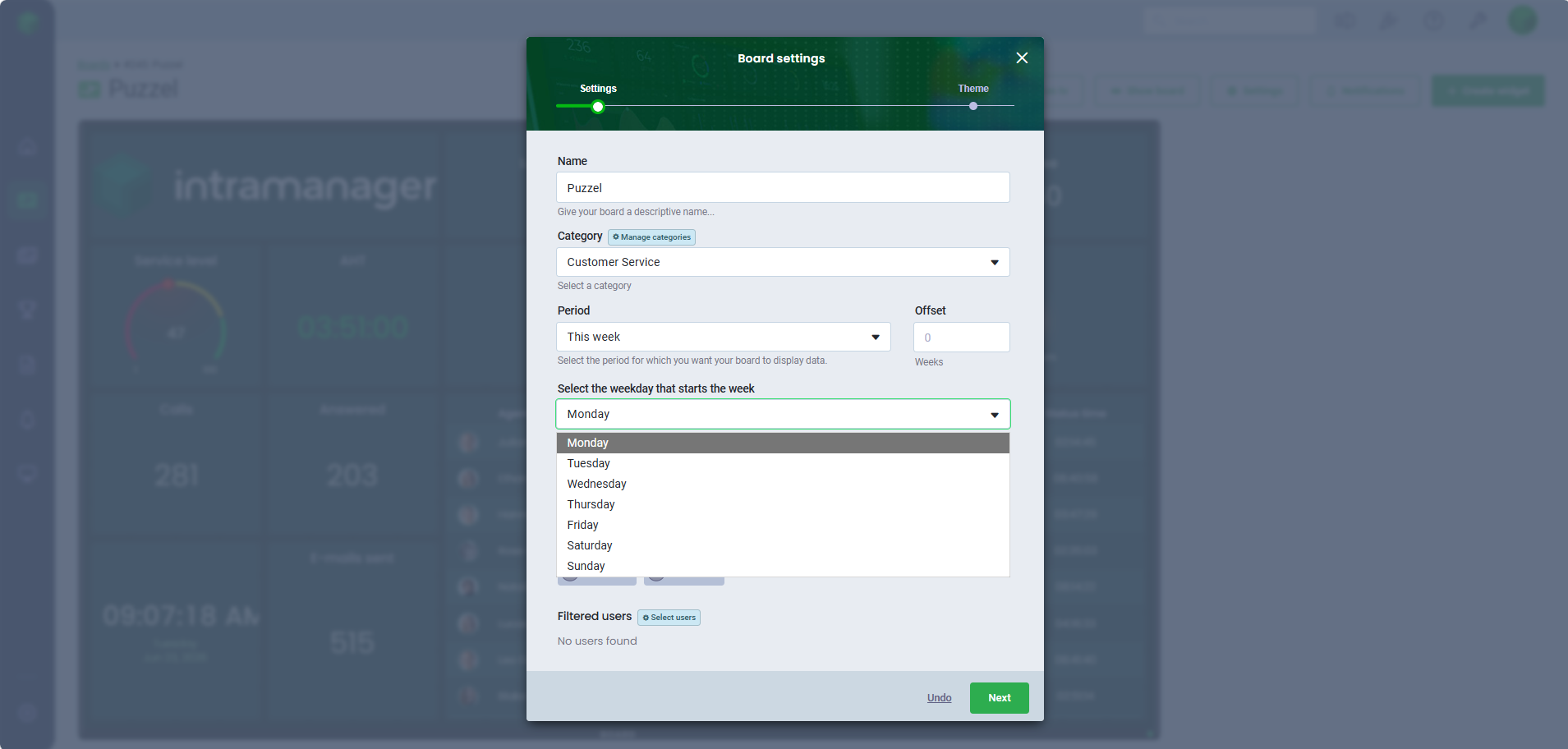
You can customize the start day of your week when using This Week or Last Week.
- Navigate to Boards, Games or Reports
- Click Create or Edit an existing
- Select This Week or Last Week as your period under each widget or in Settings
- Choose which weekday the week should start on
Example:
- Standard week: Monday–Sunday
- Custom week: Friday–Thursday

Use relative time periods
Use Last X, Last X Full Period, Next X, and Next X Full Period to create dynamic time periods based on the current date and time.
- Navigate to Boards, Games or Reports
- Click Create or Edit an existing
- Select a relative period under Settings or for an individual widget:
- Last X
- Last X Full Period
- Next X
- Next X Full Period
- Enter the number of units in the X value field
- Select the unit in the X unit field:
- Minutes
- Hours
- Days
- Weeks
- Months
- Years
Example:
- Last X Full Period = 2 weeks
Shows the previous two complete weeks, starting from Monday - Last X = 2 weeks
Shows the previous 14 days based on the current date
You can e.g. use the feature to display: Who has made the most sales in the last 30 minutes?

Use Offset to adjust a period
Offset allows you to shift a selected time period forward or backward.
- Navigate to Boards, Games or Reports
- Click Create or Edit an existing
- Select a time period
- Enter an Offset value
Examples:
- Last Month + Offset 1
Shows this month
- Today + Offset -1
Shows yesterday
 |  |
Was this article helpful?
That’s Great!
Thank you for your feedback
Sorry! We couldn't be helpful
Thank you for your feedback
Feedback sent
We appreciate your effort and will try to fix the article