In Survival, the users can continuously monitor their performance relative to others and see how close they are to the goal. If users do not contribute to the selected KPI within the defined timeframe, they turn into zombies.
- Go to Games
- Click Create a game
- Select Zombies
- Name the game
- Add the game to a category by selecting a category from the dropdown menu
- To create or manage categories, click Manage Categories and add new categories if needed.
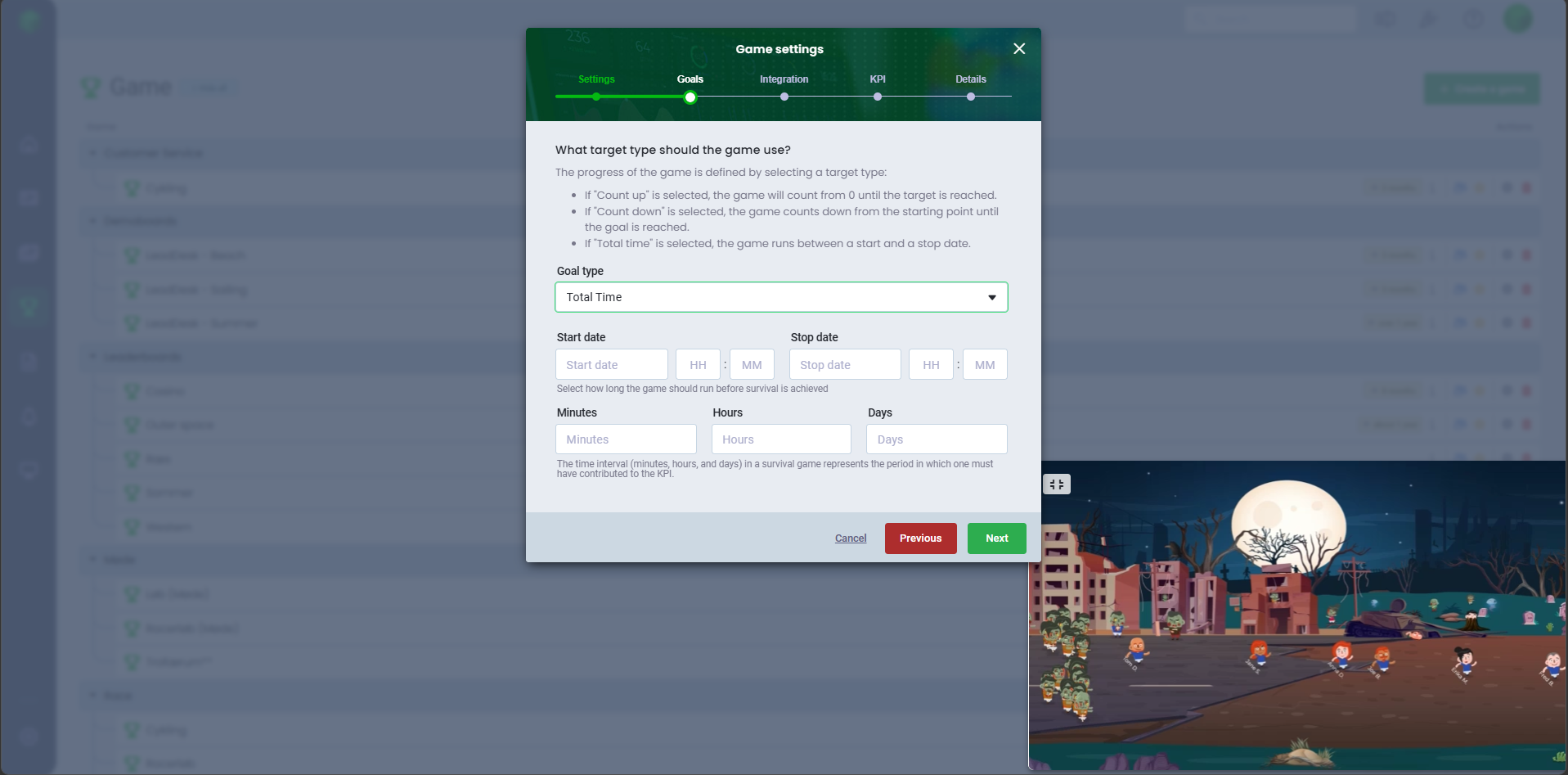
- Select a goal type:
- Overall count up: Set the goal and define the time interval in which the KPI must be achieved
- Overall count down: Define the countdown, set the goal, and specify the time interval in which the KPI must be achieved
- Total time: Set the start and end date, and define the interval in which the KPI must be achieved
- Select the data source
- Customize filters for the datasource under Manage Filters. You can also filter by teams or users from Board.
- Select the KPI for the game
- Enter a name for the KPI
- Select the game period
- Set conditions for the users, if certain conditions should be met
Your game is now ready to be shared among the users and added to slideshows.
Preview the game in the bottom-right corner.
Avatar
When your users are set up as users in Board, they can create their own avatar via their user profile, where they can also select various features that are included in the different games. If your users are set up as data users, Administrators and Managers can create avatars on their behalf.
Encourage your employees to personalize their avatars, as these appear in the games and make it more motivational for them to keep track of their progress.To display user avatars, remember to link users with their integration users.Was this article helpful?
That’s Great!
Thank you for your feedback
Sorry! We couldn't be helpful
Thank you for your feedback
Feedback sent
We appreciate your effort and will try to fix the article