With notifications, you have the option to highlight news and events on boards, games and slideshows. You also have the option to send notifications to Emails, Microsoft Teams and to your feed in Board.
To create notifications, you must have the Manager or Administrator role.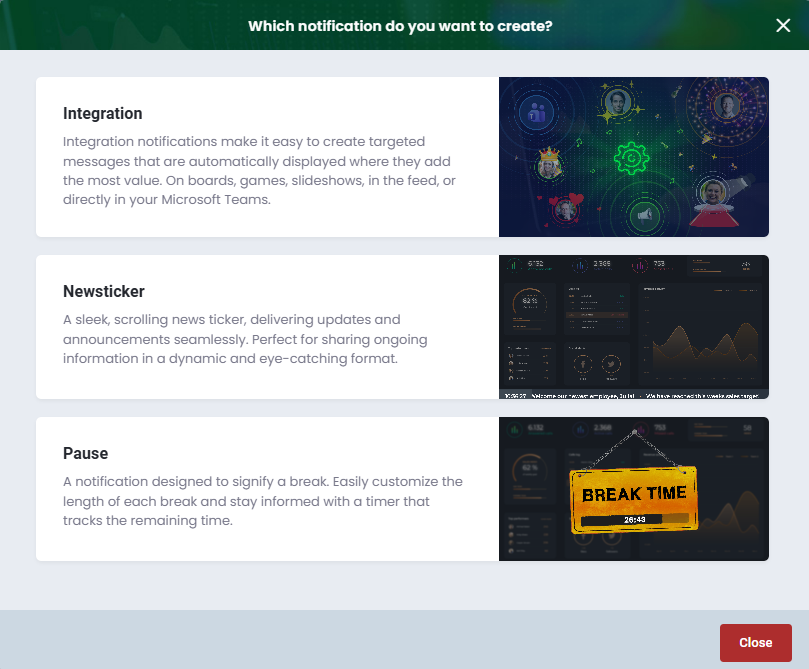
The overview displays notification actions as icons. A maximum of five actions are shown, followed by a +X indicator if additional actions are added.

How to set up notifications
- Navigate to Notifications
- Click Create notification
- Choose between Integration, Newsticker or Pause
- Choose integration if the notifications should be based on your data
Overview
Integration
- Give your notification a title
- Choose your data source
- If you want to customize filters, it is possible under Manage Filters . If you want to filter by teams or users in Board, this is also possible
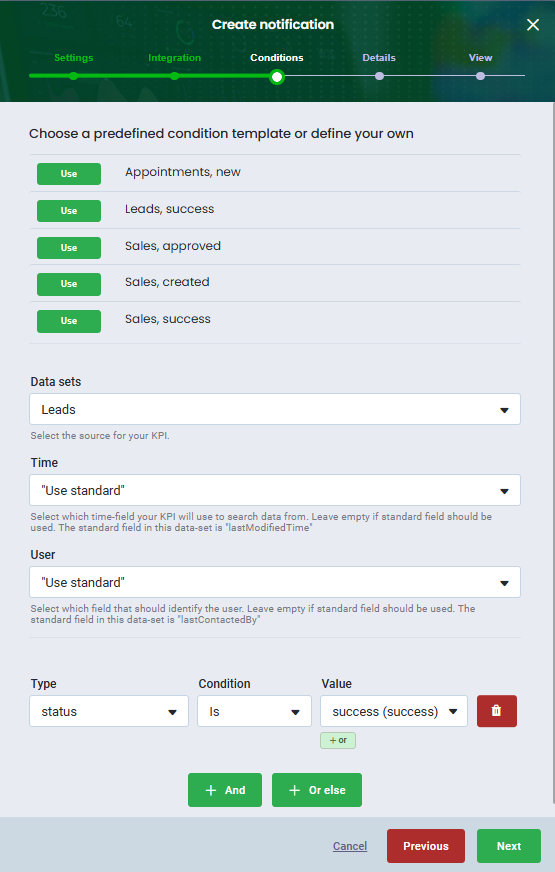
- Choose a predefined template or define your own conditions
- Finish by clicking Save
The templates depend on your integration. If you prefer to build your own template, it can be created with conditions, in the same way as custom KPIs.
When your notification is set up, you can add actions to your notification.
You can add several actions to your notification.Add actions
Show on Screen
You can easily create actions that pop up on your board, game or slideshow when an action has been triggered, for example, when a person has made a sale.
A separate notification will be created for each row that meets the specified conditions. For example, if one row reaches X and another row reaches Y, you will receive two notifications, one for each row.You can choose between different action types, highlighting each individuals performance with e.g. stars, displaying actions on a collective level with banner or setting up a Video action, with a YouTube video.
- Click on Add action
- Select Show on screen
- Select one of the types
- Give the action a title
- Customize the action:
- Choose sound for the notification. Each time the notification pops up, it will play the selected sound
- Set the amount of seconds the notification should be displayed
- Customize the visual, you can show image, name, team, add text, and use merge fields to customize your content
- Choose the board, game or slideshow you want to add the action to
- Finish by clicking Save
In the bottom right corner, you can see a preview.When you add notifications to your boards or slideshows, you can dismiss the notification if you want to stay focused on your data, by clicking on the notification.User interaction is required to play audio in a browser. Try refreshing your browser to reactivate the audio.Video
You can choose to display YouTube videos at the organization level, meaning the same video will pop up for all users. You also have the option to display YouTube videos at the user level, if enabled, and users have added a video to their profile. If the user has not selected a video, the video inserted in the notification will pop up instead.
- Select Video under Show on screen
- Optionally, you can give it a name and choose a sound for the action
- Set the duration
- Insert your YouTube video
- If Use the users own video is enabled, the user's video will be shown
- Choose the start and stop time for the video
- Customize the content of your action, such as showing name, fullscreen video, team, adding text, and using the available merge fields
- Select which board, game or slideshow the action should displayed on
You can always add your actions to your boards, games and slideshows afterward.As an administrator/Manager you can check which video a user has chosen in their profile. If the video chosen is not up to standard you can overrule the video:
- Navigate to Settings
- Go to Users
- Click on the individual user
- On the Personal Info tab, under Settings, click the link in the YouTube Link to Personal Notification Video field to view the currently selected video.
- To replace the video, enter the URL of the new YouTube video in the YouTube Link to Personal Notification Video field.
If a start and stop time has not been set the video will automatically be set to 600 seconds and if so the set up from the notification will overrule.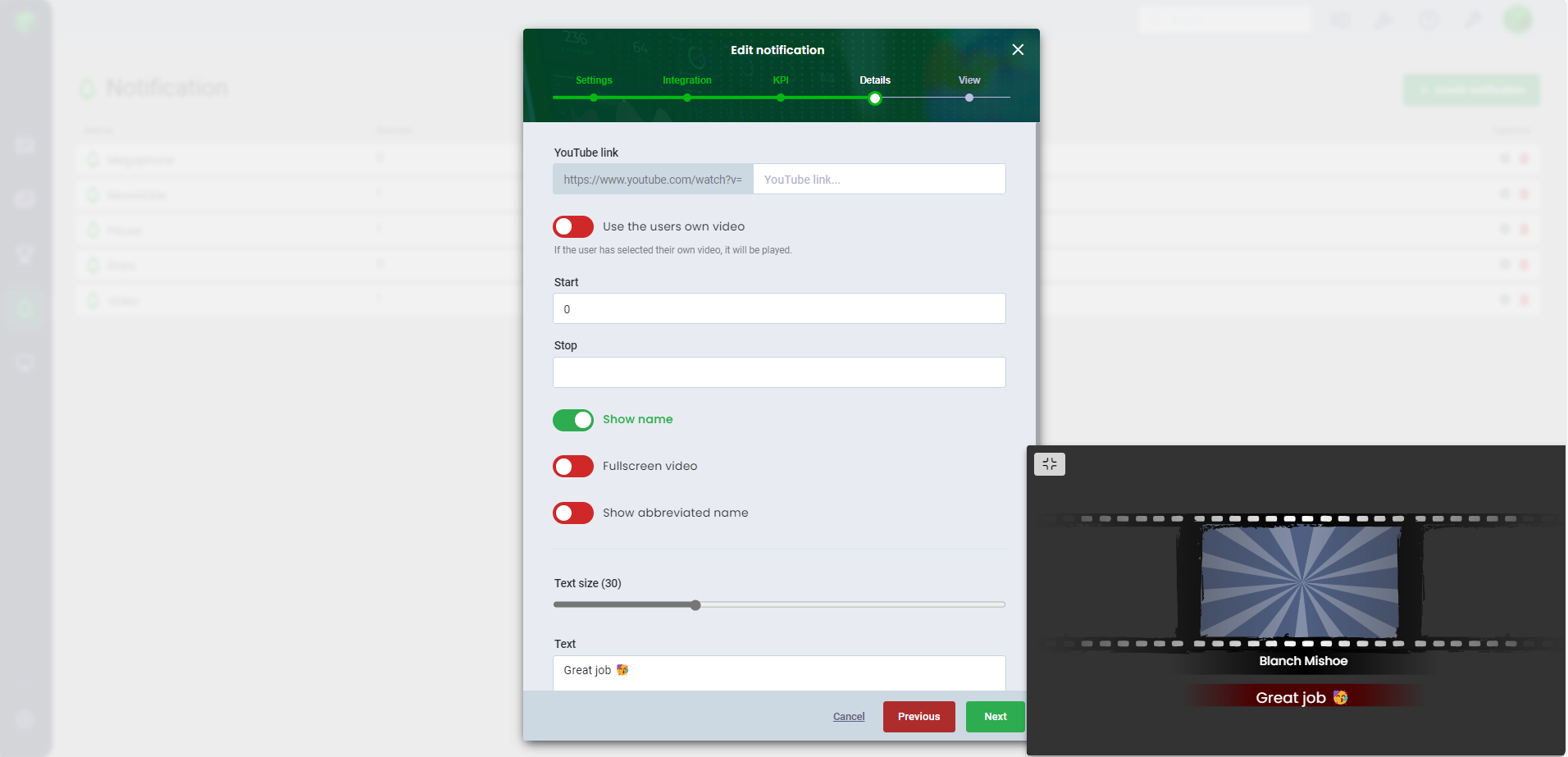
Banner & Megaphone
Create actions to your notifications that pop up on your board, game or slideshow, on a collective level.
- Select Banner or Megaphone under Show on screen
- Optionally, you can give it a name and choose a sound for the action
- Set the duration
- Customize the your action,
- Select an icon (Banner) and color
- Set the text size
- Add text and use the available merge fields
- Select which board, game or slideshow the action should displayed on
You can always add your actions to your boards, games and slideshows afterward.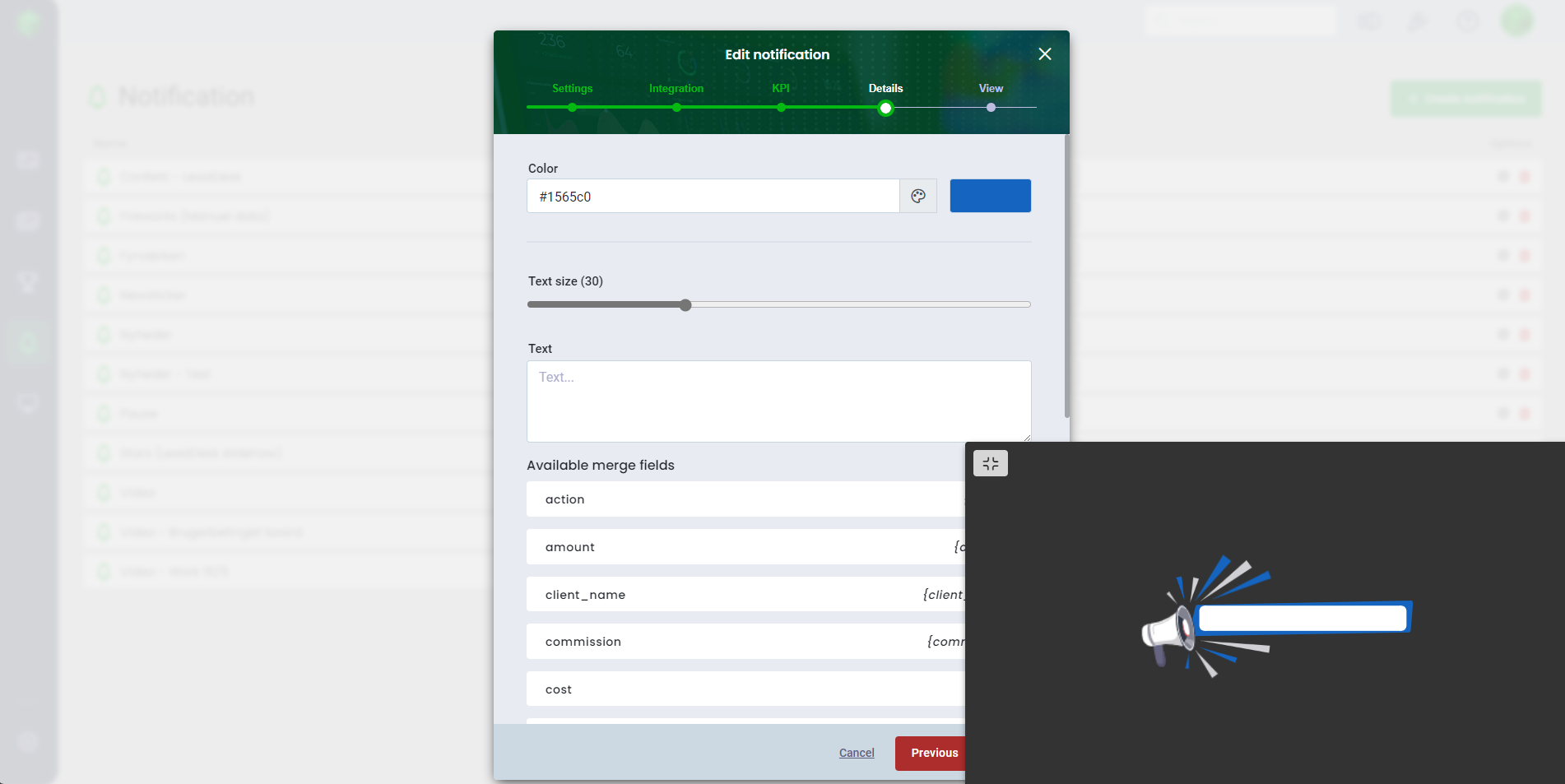
Show in feed
With Show in Feed, you can display every time an action is triggered. Users with access to the action can view, interact with, and like the post in the feed, making it easy to celebrate user performance. You can access the feed from the Home page.
- Click on Add action
- Select Show in feed
- Give the action a title
- Customize the action:
- Customize the visual with design, text and merging fields
- Share the action, you can share the action with all, roles, teams or users. If the action hasn't been shared, it will not be displayed
Once you have selected who the content should be shared with, click on Next. You will then see a list of the individuals with whom the content is shared, along with information on whether it is shared via role, team, or directly. 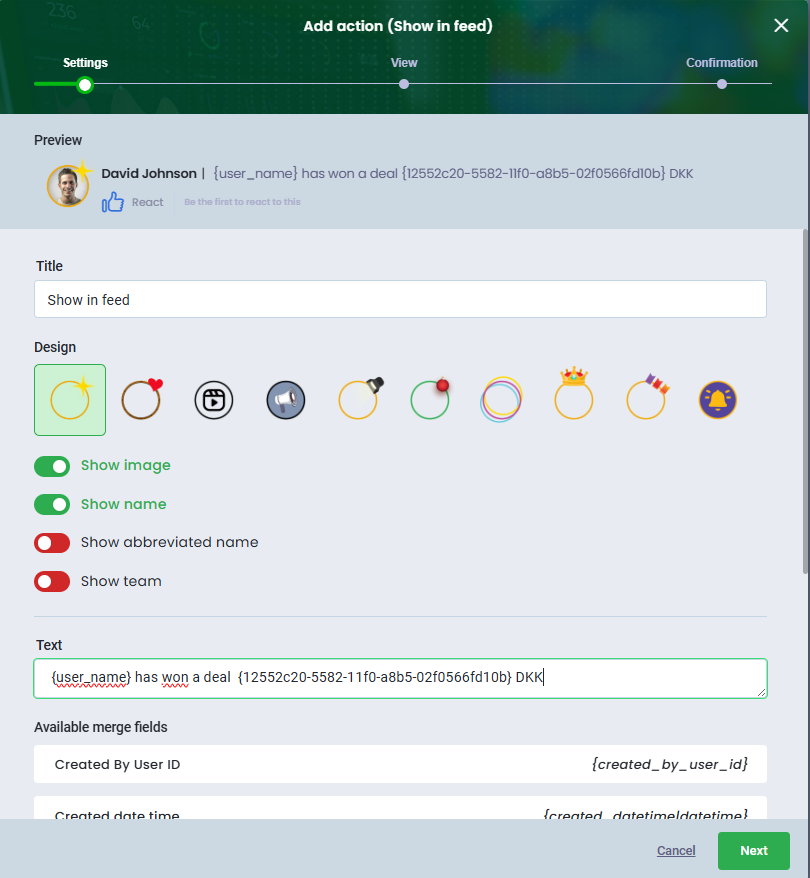
Send in Microsoft Teams
Keep your team up to date with automated updates and instant notifications in the Microsoft Teams channels whenever an action is triggered in Board.
You can add text and make use of merging fields in your notifications.Only Admins in Microsoft Teams can set it up.Before you can set up this action, you should follow these steps:
Add IntraManager to your App Catalog
Sending notifications to your Microsoft Teams channels requires the IntraManager bot to be uploaded to your Microsoft Teams App Catalog.
There may be limitations due to your organization’s setup, for example if your IT department has disabled the ability to add apps in Microsoft Teams.- Download the zip file here
- Go to Microsoft Teams
- Click Apps
- Click Manage your apps
- Click Upload an app
- Select Upload an app to your org's app catalog
- Upload the zip file
- Select a team and channel IntraManager should be added to, hereafter IntraManager will be able to send notifications directly to Microsoft Teams
- Click Set up a bot to finish
Set up data source
To set up the integration with Microsoft Teams, we use OAuth 2.0. This ensures a 100% correct integration based on the rights of your Microsoft 365 user
To set up the Microsoft Team integration with Board, simply follow these steps:
- Go to Settings > Integrations
- Click on Add Integration and select Microsoft Teams
- Click Start integration
- Optionally, click Check credentials to validate the information. If all the details are validated, they will be highlighted in green
- Finish by clicking Save
How to set up the action
- Click Add action
- Select Send in Microsoft Teams
- Name the action with a title
- Select your Microsoft Teams integration
- Select channel
- Add a text to customize your action, you can use the merging fields to see amount etc.
- Finish by clicking Save
Wheel of Fortune!
Spin the Wheel of Fortune on boards, games or slideshows! When the action is triggered, the wheel will pop up on your screen.
Set up segments with different options or rewards, giving users the chance to spin the wheel and win prizes, discounts, points, or other rewards, when the action is triggered.
Add a minimum of 2 segments to your wheel of fortune- Click Add action
- Select Wheel of Fortune!
- Give the action a title
- Set the amount of seconds the notification should be displayed
- Click Add segments for each option to the Wheel of Fortune
- Customize the action with e.g. text and merging fields
- Choose the board, game or slideshow you want to add the action to
- Finish by clicking Save
When you add actions to your boards, games or slideshows, you can dismiss the notification if you want to stay focused on your data, by clicking on the notification.In the bottom right corner, you can see a preview.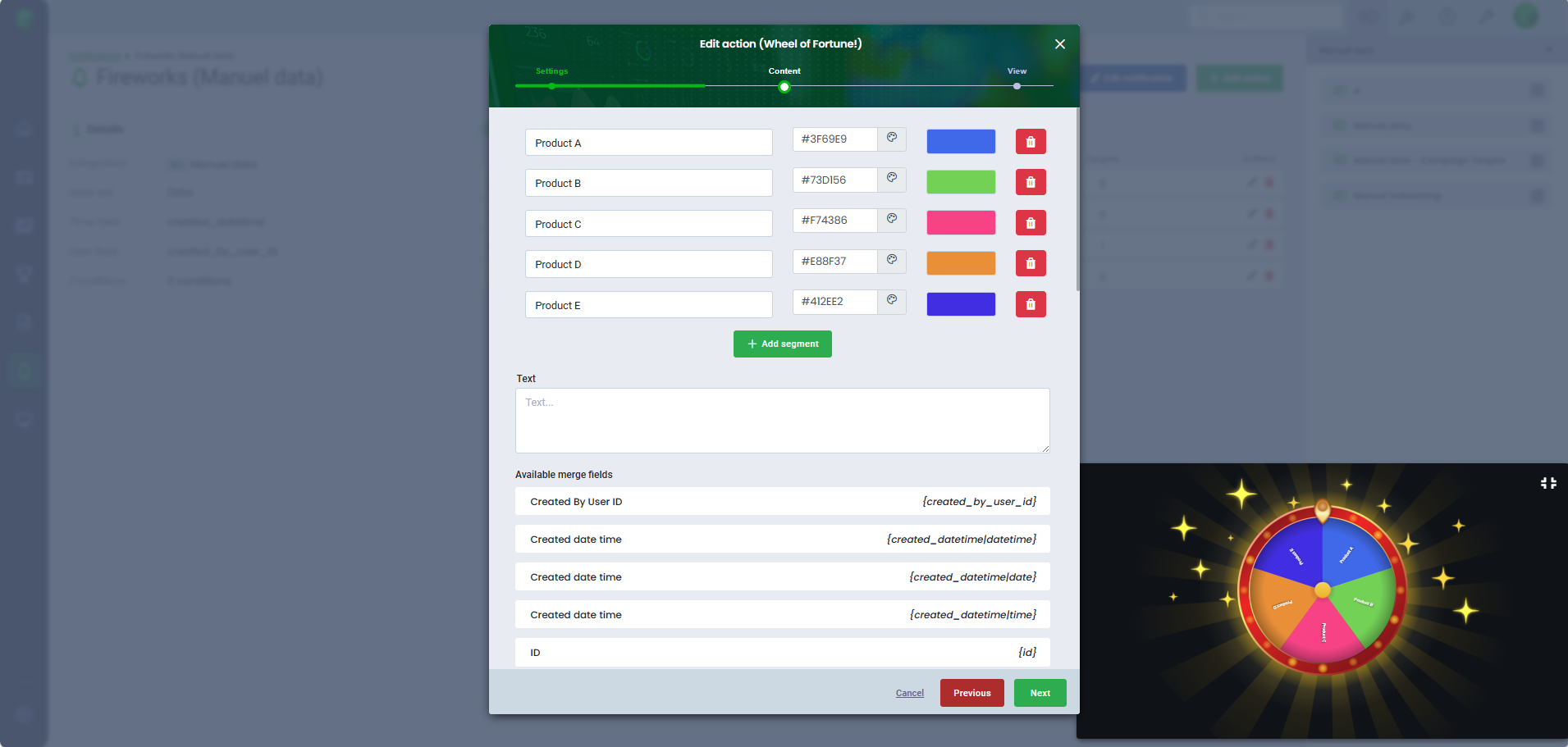
Achievement
When you set up actions with achievements, the user who triggers the notification will be granted the achievement. The achievement will be visible on the user’s profile, and if you have enabled Achievements in your tables in Board, the achievement icon will be displayed next to the user’s name.
Achievements will be granted to the individual user, it will not pop up on your screen. Only single-tier achievements can be given via notifications.A user can only be granted one achievement per action, it will be granted once the notification conditions are met.
- Click Add action
- Select Achievement
- Give the action a title
- Choose which achievement the action should be based on
- Finish by clicking Save
It is also possible to manage achievements manually, where you can add and remove achievements under Manage achievements in Achievements.Send notification as email to the selected recipients.
Please contact Support@intramanager.com to unlock Email.Once IntraManager Support has unlocked the action, you can set it up by following these steps:
- Click Add action
- Select Email
- Give the action a title
- Enter email and click Add
- Enter subject of the email
- Customize the action with text and merging fields
- Finish by clicking Save
The emails notifications are sent from <no-reply@intramanager.com>
Edit or delete actions
If you want to edit or delete actions in your notifications, follow these steps:
- Navigate to Notifications
- Edit your notification
- Click Edit if you want to make changes to your action
- Click Delete and confirm with Yes
Newsticker
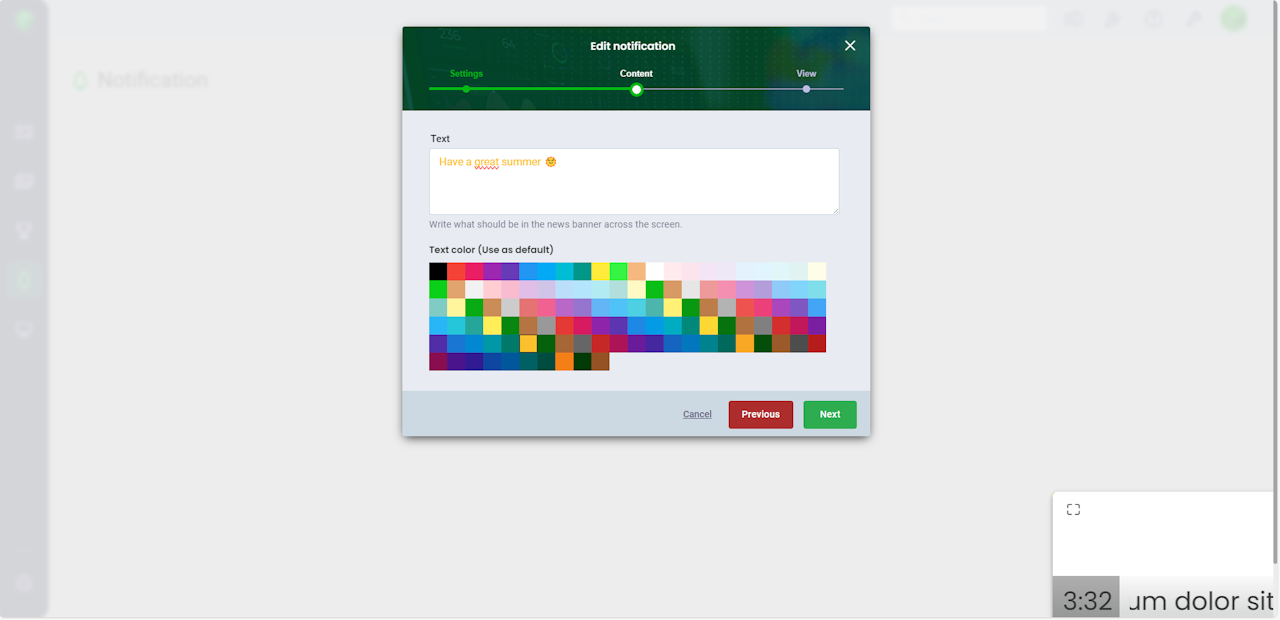
With Newsticker, you have the option to display news running across the of the screen. Add content and choose the color of your text.
- Give your notification a title
- Customize your notification with text and text color
- Select which board, game and/or slideshow the notification should appear on. You can always add your notifications to your boards, games and slideshows later.
- Finish by clicking Save
If no color is selected, a default color is selected. The color of the newsticker, is determined by your selected color theme. If you want multiple news items to run across the screen consecutively, simply create additional news notifications and assign them to your board, game or slideshow.
Pause
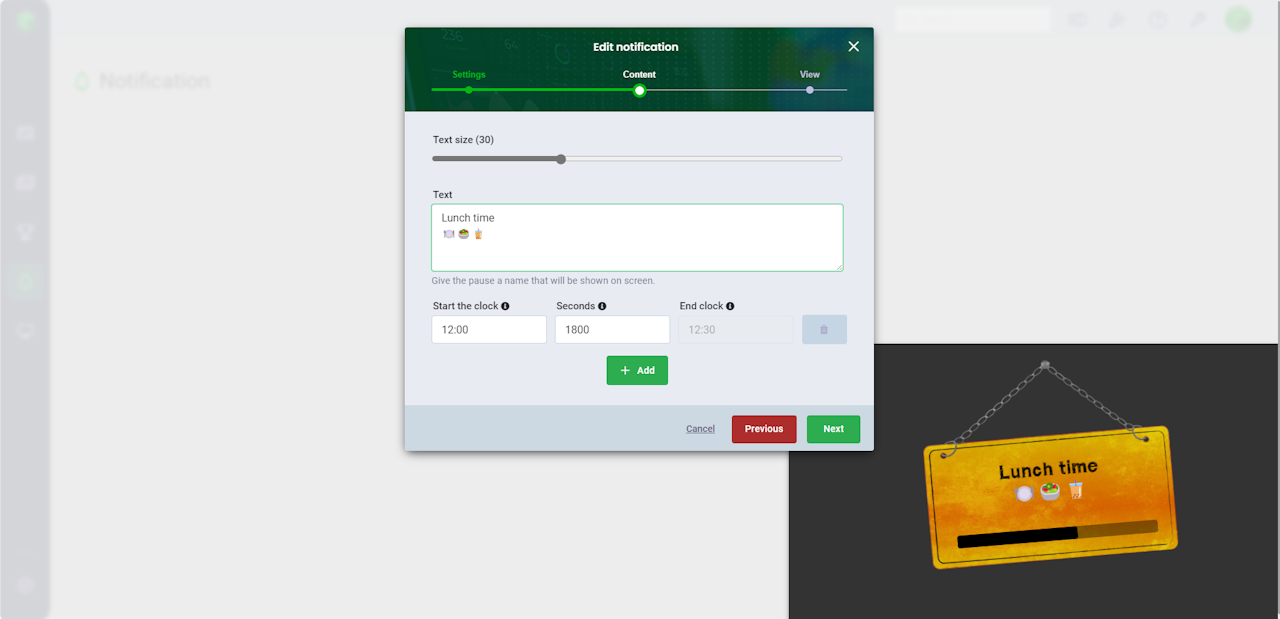
With Pause, you can set up break notifications.
- Give your notification a title
- Choose a sound
- Customize your notification with text size and text
- Select the start time and specify how long the break notification should be displayed on the screen.
- If you want to include multiple breaks in the same notification, click Add to include another break.
- To delete a break, simply click Delete.
- Select which board, game and/or slideshow the notification should appear on.
- Finish by clicking Save
You can always add your notifications to your boards, games and slideshows later.
Was this article helpful?
That’s Great!
Thank you for your feedback
Sorry! We couldn't be helpful
Thank you for your feedback
Feedback sent
We appreciate your effort and will try to fix the article