With notifications, you have the option to highlight news and events on boards and slideshows.
To create notifications, you must have the Manager or Administrator role.Create notification
1. Navigate to the menu item 'Notifications'
2. Click on 'Create notification'
3. Choose from the different notification type in the overview
4. Name the notification
5. Customize your notification, choose whether you want sound with your notification. Each time the notification pops up, it will play the selected sound. Additionally, you can adjust the notification duration and text size.
In the bottom right corner, you can view a preview of the notification.6. Choose the data source
7. If you want to customize filters, it is possible under 'Manage Filters'. If you want to filter by teams or users in Board, this is also possible
8. Select one of the predefined templates or define your own
The templates depend on your integration. If you prefer to build your own template, it can be created with conditions, in the same way as custom KPIs.
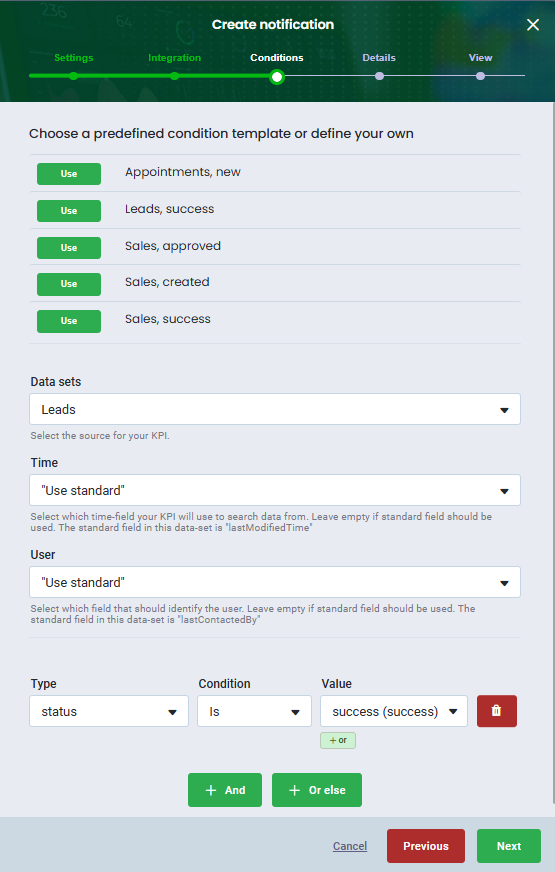
9. Choose the data to display in the notification
10. Choose the board or slideshow you want to add the notification to
A notification appears for each row in the dataset that has been triggered. For example, if conditions are set so the notification will pop up when X or Y is reached and these conditions apply to different rows, then two notifications will pop up.
When you add notifications to your boards or slideshows, you can dismiss the notification if you want to stay focused on your data, by clicking on the notification.User interaction is required to play audio in a browser. Try refreshing your browser to reactivate the audio.
Was this article helpful?
That’s Great!
Thank you for your feedback
Sorry! We couldn't be helpful
Thank you for your feedback
Feedback sent
We appreciate your effort and will try to fix the article